Pega Constellation provides declarative, user-friendly configuration options to build modern UI experiences. Two such features Tooltips and Calculated Fields enhance usability and efficiency without relying on traditional section-based customization. This article explores how to implement tooltips, set up calculated fields, and examines button alternatives in Constellation.
Tooltips in Constellation
Tooltips are used to provide additional information or contextual help beside fields without cluttering the UI. Here’s how you can configure one:
Steps to Add a Tooltip
- Open a Case Type in App Studio.
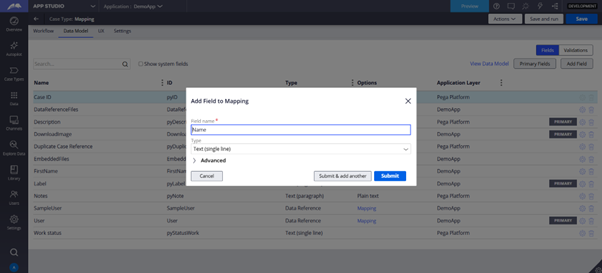
- Navigate to the Data Model tab and click Add Field.
- In the dialog box, expand the Advanced section.
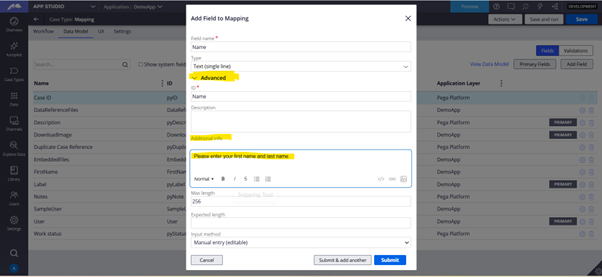
- Enter your tooltip message in the Additional info field.
- Save the property.
- Add the configured field (e.g., Name) to a view.


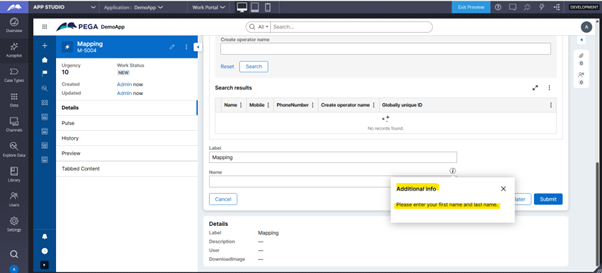
- Run the case — a tooltip icon appears next to the field.
- Click the info icon to view the tooltip content in a small overlay.
This approach provides end-users with a better understanding of form fields without overloading the screen.
Alternatives to Using Buttons in Pega Constellation
Unlike traditional section rules in Theme-Cosmos, Constellation does not allow manually placing buttons inside views. Below are declarative alternatives:
A. Calculated Fields
Automatically compute values based on input — improving accuracy and minimizing manual steps.
Steps to Create a Calculated Field
- Open your Case Type → Go to Data Model → Click Add Field.
- Choose a field type that supports calculation (e.g., Integer, Decimal).
- In Advanced, check: “This is a calculated field (read-only)”.
- Define the calculation method:
- Use Expression: Directly add logic (e.g., .Price * .Quantity).
- Custom Decision Table: Create a new decision table.
- Existing Decision Table: Select a pre-defined table.
- Predefined Function: Choose a function (e.g., SUM) and target field.
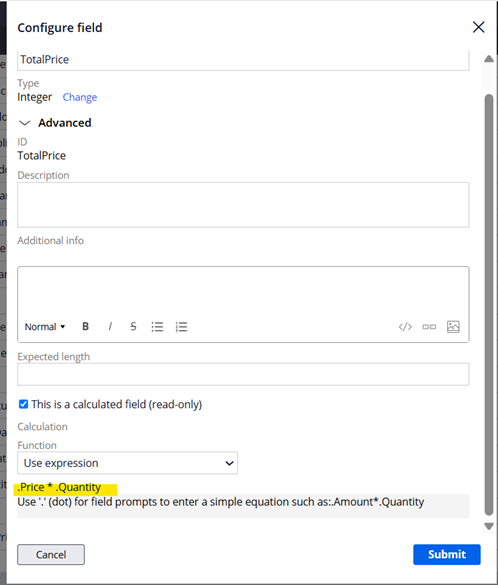
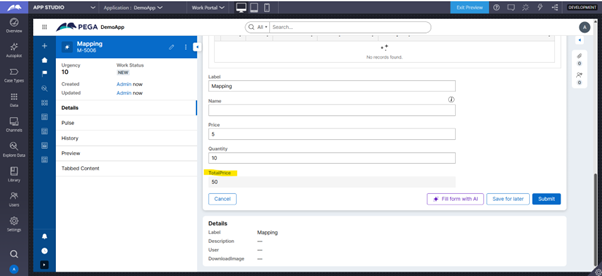
Note: “This is a calculated field(read only)” option is visible only for fields that support calculation.
- Flow Refresh
Instead of adding buttons to trigger actions, use Flow Refresh:
- Watch for changes to specific fields.
- Automatically execute a Data Transform behind the scenes.
- Use the pyRefreshData extension point to customize behavior.
Use Cases:
- Dynamically update multi-selects or editable tables.
- Real-time updates based on field changes.
C. Search and Select Pattern (OOTB)
For Data Reference fields, Pega auto-includes a search icon — eliminating the need for a manual button:
- User clicks the icon.
- A built-in panel allows filtering and selecting from a data source.
This UI behavior is declaratively rendered based on pattern configuration.
D. Actionable Button Component (Constellation UI Gallery)
This advanced component allows Local Actions to be triggered via buttons:
- Aligned with DX API standards.
- Logic is reusable across channels.
- However, evaluate necessity: Is it better added to the Actions menu?
Overuse of buttons can clutter UI and reduce consistency. Prefer lifecycle-driven design.
Tooltips and calculated fields in Pega Constellation promote streamlined, low-maintenance UI/UX. By adopting configuration-driven patterns and leveraging OOTB features, developers can eliminate reliance on traditional buttons, reduce manual logic, and accelerate time-to-market.
For complex cases requiring advanced interaction, custom DX components and Local Actions remain flexible, guardrail-compliant options.